Sunday, 7 February 2016

Zanti 2: How to Hack PC, mobiles, mac. Network penetration testing toolkit and application for Android.

Zanti 2: How to Hack PC, mobiles, mac. Network penetration testing toolkit and application for Android.


Zanti 2 is a android application which is made up for network penetration testing.

Download Zanti 2apk.
What Zanti 2 can do?
  • Scan the whole network
  • show alive host in the network
  • scan port through Nmap for port Scanning
  • Scan Service on each port and find vulnerability.
  • Perform Brute force attack
  • Perform Shellshock etc vulnerability
  • MITM: Man In The Middle Attack
  • Session Hijacking
  • SSL Striping
  • Sniffing packets
  • Replace image
  • Redirect URL and IP
  • Intercept and modified live download.


For Demonstration :

Before install Zanti your Phone must be rooted.. In case your phone is not rooted search in the site you will find how to root android its very easy.
  • I used Zanti in my android device and Scan the network.
  • I choose the Mac OSx Machine which was my laptop.
  • After that start The MITM on and SSL strip to grab some packets and try to grab the password of that machine.
  • in the end i successfully travel the victim into http over https and grab the login credentials.
  • For demo kindly check the images which i posted in this post. 

Step 1: Scan the whole wifi network.


After that Scan i get to know all the mobile and system connected to wifi network, its also scan the all ports as you can see in the above image.
I choose the 192.168.0.100 (Mac OSX)


Step 2: After Opening the desirable victim i can see the open port and some other details as shown in below image 


As you can see in the above image Zanti2.apk successfully scan the all host in the network and after choosing the victim you want to hack or perform some testing you will see the same image in about section.

In the Attack section:

1. Password Complexity audit: Its check and brute force the password ex: default password on the victim.

2. MITM: It Intercept the network packets via MITM attacks.

3. ShellShock : its check the vulnerability exist on the victim or not.

4. SSL Poodle : its check the target is it vulnerable for SSL Poodle attack or not.


Its also shows the Nmap Scan Result ( Check the below image)


In My demo i used MITM Attack on the Target.

Step 3: After Selecting MITM attack you will see many things you can do on target machine ex: check the image below
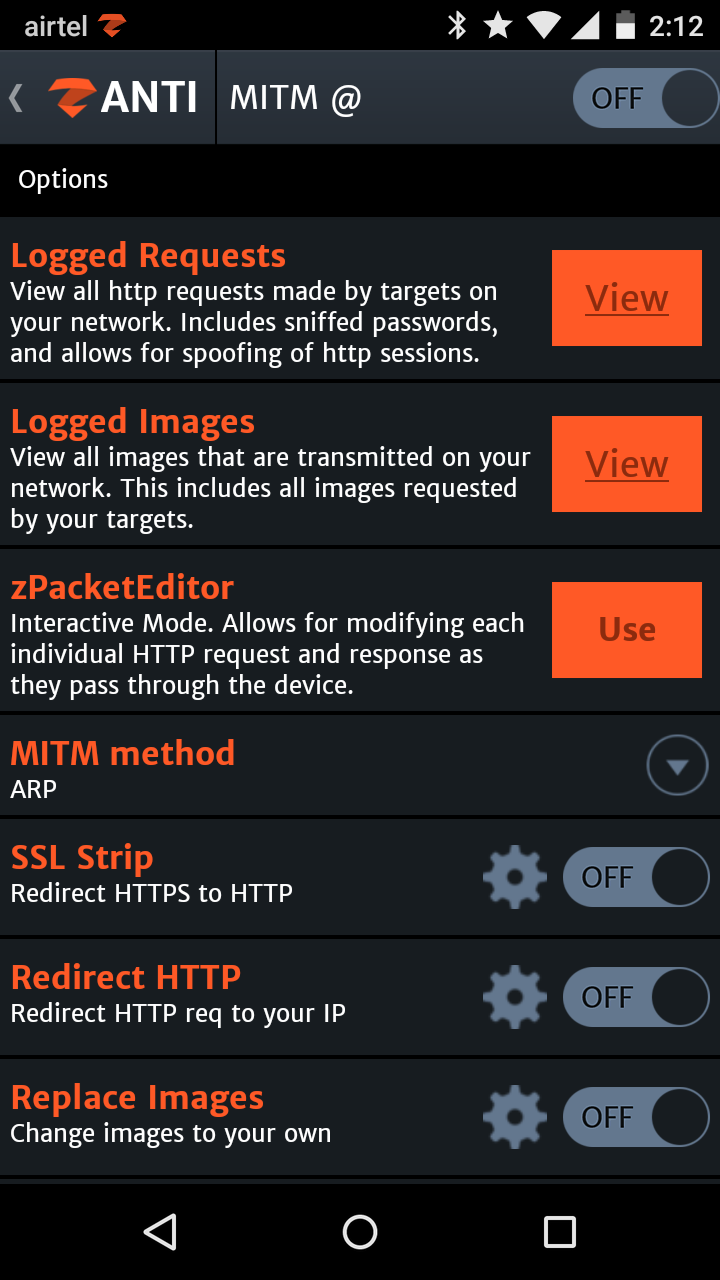


As you can see all the attack you can do on target by using MITM, In my case i switch "ON" the MITM which is on the Right-Top.

In next step i turned "ON" the SSL Strip. (Check the image below)


As you can see i turned "ON" both things together by using Zanti2.apk in the MITM attack from my android device to hack the other phone or PC.


Step 4: After that I sniff the packets ( Check the image below) and SSL Striping working perfectly and strip hotmail in HTTP .


As you can see hotmail is strip into http and its ready to grab the password as soon as victim enter the login details.

Saturday, 6 February 2016

Unlock Memory Card

Unlock Memory Card

How To Unlock And Hack Memory Card When You Forget Your Memory Card Password

Some times it happens that you forgot the password of your memory card and you have lots of your important data in your phone.
So there are two types of methods for recovering the password of your memory card with the help of nokia phone.
For Nokia s60 1st and 2nd edition phones.
1. First Install FExplorer in your phone memory.
2. Got to drive C: , you will find a file called mmcstore
3. Send it to your pc directly and open it in notepad or rename the file.
4. At the end of the file you will find your password.
For Nokia S60 3rd Phones, Nokia N-Series and Nokia E-Series
There is almost no way yet known to hack the memory card password in case of these types of phone but there is a way to do it some of the s60 3rd edition phones and almost all the E-series phones.
The remote lock option in E-Series phone allws you to unlock your phone by sending a sms.
The only thing you have to do is to activate this feature by going to Tools | Settings | Security | Phone and SIM | Allow remote lock menu. The password of your memory card will be your remote lock message.
So you have to just send a sms containing your remote lock message that will automatically change your memory card passsword.

How to Trace Any IP Address

How to Trace Any IP Address

In my earlier post, I had discussed aboutHow to find the IP address of a remote computer. After you obtain this IP address, it is necessary to trace it back to the source. So, in this post I will show you how to trace any IP address back to its source.

How to Trace the IP Address Back to the Source?

In fact, tracing an IP address back to its location is a lot simpler than what many people imagine. There exists many online tools using which you can accomplish this job. One of my favorite site isIP2Location.com.
Just go tohttp://www.ip2location.com/demo.aspx and enter the IP address that you want to trace in the dialog box and click on “Find Location”‘. With just a click of a button you can find the following information for any given IP address:
  • Country in which the IP is located
  • City to which the IP address belongs to
  • Latitude/Longitude of the IP’s location
  • Zip Code of the region to which the IP belongs to
  • Time Zone associated with the IP
  • Name of the ISP to which the IP address belong to
  • Internet Speed of the computer associated with the IP
  • Weather Station associated with the region of the IP
  • Domain name associated with the IP address
A sample snapshot of the results from ip2location.com is given below:
ip2location_results
You can also visually trace route any IP address back to its location. For this, just visithttp://www.yougetsignal.com/tools/visual-tracert/ and enter the IP you want to trace in the dialog box and hit the “Proxy Trace” button. Wait for few seconds and the visual trace route tool displays the path Internet packets traverse to reach a specified destination.

Private and Public IP Addresses: What’s the Difference?

Private and Public IP Addresses: What’s the Difference?

IP Address
Internet Protocol (IP) addresses are usually of two types: Public and Private. If you have ever wondered to know what is the difference between a public and a private IP address, then you are at the right place.
In this post I will try to explain the difference between a public and a private IP address in layman’s terms so that it becomes simple and easy to understand.

What are Public IP Addresses?

A public IP address is assigned to every computer that connects to the Internet where each IP is unique. In this case, there cannot exist two computers with the same public IP address all over the Internet. This addressing scheme makes it possible for the computers to “find each other” online and exchange information. User has no control over the IP address (public) that is assigned to the computer. The public IP address is assigned to the computer by the Internet Service Provider as soon as the computer is connected to the Internet gateway.
A public IP address can be either static ordynamic. A static public IP address does not change and is used primarily for hosting web pages or services on the Internet. On the other hand, a dynamic public IP address is chosen from a pool of available addresses and changes each time one connects to the Internet.
Most Internet users will only have a dynamic IP assigned to their computer which goes off when the computer is disconnected from the Internet. Thus when it is re-connected it gets a new IP.
You can check your public IP address by visiting www.whatismyip.com

What are Private IP Addresses?

An IP address is considered private if the IP number falls within one of the IP address ranges reserved for private networks such as a Local Area Network (LAN). The Internet Assigned Numbers Authority (IANA) has reserved the following three blocks of the IP address space for private networks (local networks):
10.0.0.0 - 10.255.255.255 (Total Addresses: 16,777,216)
172.16.0.0 - 172.31.255.255 (Total Addresses: 1,048,576)
192.168.0.0 - 192.168.255.255 (Total Addresses: 65,536)
Private IP addresses are used for numbering the computers in a private network including home, school and business LANs in airports and hotels which makes it possible for the computers in the network to communicate with each other.
Say for example, if a network X consists of 10 computers, each of them can be given an IP starting from 192.168.1.1 to192.168.1.10. Unlike the public IP, the administrator of the private network is free to assign an IP address of his own choice (provided the IP number falls in the private IP address range as mentioned above).
Devices with private IP addresses cannot connect directly to the Internet. Likewise, computers outside the local network cannot connect directly to a device with a private IP. It is possible to interconnect two private networks with the help of a router or a similar device that supportsNetwork Address Translation.
If the private network is connected to the Internet (through an Internet connection via ISP), then each computer will have a private IP as well as a public IP. Private IP is used for communication within the network where as the public IP is used for communication over the Internet. Most Internet users with a DSL/ADSL connection will have both a private as well as a public IP.
You can know your private IP by typingipconfig command in the command prompt. The number that you see against “IPV4 Address:” is your private IP which in most cases will be 192.168.1.1 or192.168.1.2. Unlike the public IP, private IP addresses are always static in nature.

Common Myth about Private IP Address:

Most people assume that a private IP is the one used for stealth Internet activities and hence cannot be detected. But this is NOT TRUE!.
Unlike what most people think, a private IP address (unlike the private telephone number) is just like any other IP address that belongs to a private network. In reality, there is no public IP address that is impossible to trace as the protocol itself is designed for transparency.

Windows TCP/IP Utilities

Windows TCP/IP Utilities

tcp ip utilities
The following are the IP utilities available in Windows that help in finding out the information about IP Hosts and domains. These are the basic IP commands that every beginner in the field of hacking must know!
Please note that the the term Host used in this article may also be assumed as aWebsite for simple understanding purpose.

1. PING

PING is a simple application (command) used to determine whether a host is online and available. PING command sends one or more ICMP “Echo message” to a specified host requesting a reply. The receiver (Target Host) responds to this ICMP “Echo message” and returns it back to the sender. This confirms that the host is online and available. Otherwise the host is said to be unavailable.
Syntax:
C:\>ping gohacking.com

2. TELNET

Telnet command is used to connect to a desired host on a specified port number. Just like a house having several doors, a host or a server has different ports running different services. For example port 80 runs HTTP, port 23 runs TELNET while port 25 SMTP. Like this there are several ports on a server through which it is possible for a remote client to establish a connection.
For a connection to be established, the port has to be open. For example, in the following command, we are trying to establish a connection with the Yahoo server on port 25.:
Syntax:
C:\>telnet yahoo.com 25
C:\>telnet yahoo.com
The default port number is 23. When the port number is not specified the default number is assumed.
NOTE: If you are using Vista or Windows 7, Telnet feature may not be available by default. To enable it, you can refer my other post: How to enable Telnet feature in Vista and Windows 7?.

3. NSLOOKUP

Many times, we think about finding out the IP address of a given site. Say for example google.com, yahoo.com, microsoft.com etc. But how to do this? There are several websites out there that can be used to find out the IP address of any given website. However, in the Windows operating itself, we have an inbuilt tool to do this job for us. It is called “nslookup”.
This tool can be used for resolving a given domain name into its IP address (determine the IP of a given site name). Not only this, it can also be used for reverse IP lookup. That is, if the IP address is given it determines the corresponding domain name for that IP address.
Syntax:
C:\>nslookup google.com

4. NETSTAT

The netstat command can be used to display the current TCP/IP network connections. For example, the following “netstat” command displays all the currently established connections and their corresponding listening port numbers on your computer.
Syntax:
C:\>netstat -a
Type "Ctrl+Z" to exit.
This command can be used to determine the IP address/Host names of all the applications connected to your computer. If a hacker is connected to your system even the hacker’s IP is displayed. So, the “netstat” command can be used to get an idea of all the active connections of a given system.
NOTE: In order to obtain help on any given command such as its syntax, attributes etc., just type the “command-name /?” to obtain usage details on it. For example, to obtain help on “netstat” command just type:netstat /? and hit enter.